
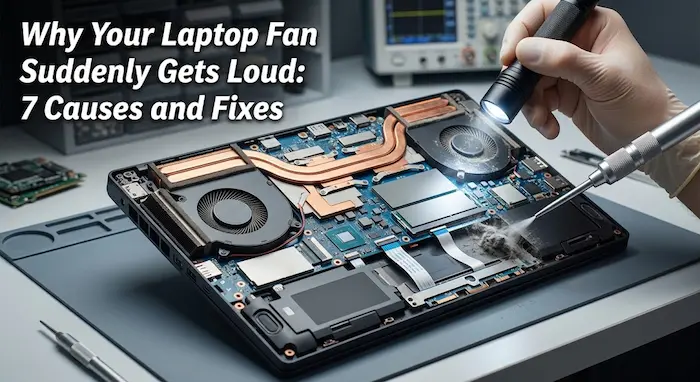

A laptop fan suddenly becoming loud can be alarming, especially when the computer was quiet a few minutes earlier.
You may hear the fan speeding up while opening several Chrome tabs, watching YouTube, editing photos, installing Windows updates or simply charging the laptop.
In many cases, a loud fan is the laptop doing exactly what it was designed to do: moving more air to remove heat.
But if the fan stays loud when the laptop is doing almost nothing, the computer becomes unusually hot, performance drops or the fan starts making grinding or rattling sounds, there may be a problem worth investigating.
For Kenyan laptop users, this can be particularly noticeable in warm rooms, dusty environments and on older or refurbished machines that have accumulated dust over years of use.
Here are the most common reasons your laptop fan suddenly gets loud and what you can do about them.
Why Does a Laptop Fan Get Loud?
The basic relationship is simple:
More workload → more heat → faster fan → more noise.
Modern laptops automatically adjust fan speed according to temperature and workload. Microsoft notes that a Surface device, for example, can increase fan speed when the system is heavily used because the processor generates more heat.
Dell similarly says that fan speed and noise can rise during demanding workloads such as streaming, gaming, Windows updates or running many applications.
So a loud fan isn’t automatically a sign that your laptop is failing.
The important question is why the laptop is producing or struggling to remove that extra heat.
1. Your CPU Is Working Hard
The most common explanation is increased CPU usage.
Your processor generates heat when it is working. If you suddenly start running several applications or a demanding task, the cooling system responds by increasing fan speed.
Examples include:
- Opening many browser tabs
- Video calls
- Watching high-resolution video
- Installing software
- Windows updates
- Photo or video editing
- Running virtual machines
- Gaming
- Compressing large files
- Using AI-powered applications
- Working with large spreadsheets
Microsoft recommends using Task Manager to identify applications consuming significant CPU, memory or disk resources.
How to check CPU usage
On Windows:
- Press Ctrl + Shift + Esc.
- Open Task Manager.
- Click Processes.
- Look at the CPU column.
- Identify applications consuming unusually high resources.
If Chrome, Edge, a video editor or another application is consuming substantial CPU, the fan may simply be responding to that workload.
Don’t immediately kill every high-CPU process
Some Windows processes legitimately use significant CPU during updates, indexing or maintenance.
Instead, ask:
Did the fan become loud at the same time I started a particular task?
If yes, the noise may be normal.
2. Too Many Browser Tabs Can Make Your Laptop Work Harder
Modern browsers are powerful applications, but that doesn’t mean every open tab is free.
A browser session containing dozens of tabs can consume considerable memory and CPU, particularly when pages contain video, advertisements, animations, live dashboards or web applications.
For example, you could have:
- Gmail
- YouTube
- Canva
- Google Docs
- WordPress
- multiple news websites
- several research tabs
open simultaneously.
Some pages continue performing work in the background even when you’re looking at another tab.
A useful test
If your fan suddenly becomes loud while browsing:
- Save your work.
- Close unnecessary tabs.
- Close browser windows you aren’t using.
- Check Task Manager.
- Wait a few minutes.
If the fan becomes quieter, browser workload was probably contributing to the problem.
Microsoft also recommends closing unused applications and tabs and restarting the computer when performance problems persist.
3. Dust Can Block Your Laptop’s Cooling System
This is especially important on older laptops.
Your laptop pulls air through vents to move heat away from internal components. Over time, dust and lint can accumulate around those vents, fans and cooling fins.
When airflow becomes restricted, the fan may have to work harder.
Dell says blocked vents and dust accumulation can restrict airflow and cause fans to work harder and louder.
HP gives similar guidance, noting that dust around air vents can obstruct airflow and make the fan work harder.
Signs dust may be involved
Look for:
- Fan noise that has gradually become worse
- Laptop becoming hot during simple tasks
- Hot air coming from the vents
- Fan running almost constantly
- Performance slowing down under sustained workloads
- Visible dust around ventilation openings
What you can do
Turn off the laptop and disconnect its power.
Inspect the vents for dust and obstruction.
For external vent cleaning, manufacturers commonly recommend appropriate compressed-air cleaning while following the laptop manufacturer’s instructions. Dell specifically advises powering down and disconnecting the AC adapter before cleaning vents.
Do not blow into the vents with your mouth.
Moisture can damage electronics. Dell specifically warns against this.
If the laptop requires internal cleaning, particularly an older or refurbished machine, having a qualified technician clean the fan and heatsink may be safer than opening the machine yourself.
4. Your Laptop Is Sitting on a Bed or Soft Surface
This is an easy problem to overlook.
Using a laptop on a bed, blanket, sofa or other soft surface can restrict ventilation openings underneath the machine.
That can reduce airflow and increase heat.
HP advises using a laptop on a hard, level surface because soft surfaces can restrict or block airflow.
Dell also recommends a hard, sturdy surface with adequate clearance around ventilation openings.
Try this
Move the laptop onto:
- A desk
- A table
- A laptop tray
- Another hard, flat surface
Then give it several minutes.
If the fan becomes quieter, poor airflow was probably contributing to the problem.
This is particularly relevant if you regularly use your laptop from your bed.
5. Kenya’s Heat Can Make the Problem More Noticeable
Your laptop does not operate in a temperature vacuum.
The temperature of the surrounding environment affects how easily its cooling system can remove heat.
Microsoft notes that higher ambient temperatures can cause Surface devices to increase fan activity.
That means a laptop working in a warm room in Nairobi, Mombasa, Kisumu or another part of Kenya may behave differently from the same machine being used in a cooler environment.
The effect can become more noticeable when you combine:
warm room + charging + many browser tabs + blocked vents
with an older laptop.
You don’t necessarily need an expensive cooling setup.
Start by improving airflow and reducing unnecessary workload.
6. Your Power Settings May Be Prioritising Performance
Windows power modes can influence how aggressively a laptop operates.
Microsoft says its Best performance power mode can increase power consumption and cause a laptop to run warmer, while other modes can reduce power use.
If your laptop is configured for maximum performance when you don’t actually need it, the fan may become more active.
Check Windows power settings
On Windows 11:
Settings → System → Power & battery → Power mode
Depending on your device, available options can include power-efficiency or performance-oriented modes.
For ordinary tasks such as:
- Writing
- Web browsing
- WordPress
- Research
- Watching videos
you may not need maximum-performance settings.
If you’re performing demanding work, however, higher performance may be useful.
The trade-off is straightforward:
More performance can mean more heat and battery consumption.
7. Thermal Paste May Have Degraded
Thermal paste, also called thermal compound, sits between the processor and its cooling system.
Its job is to improve heat transfer from the processor into the heatsink.
On an older laptop, degraded or poorly applied thermal material can contribute to higher temperatures.
But this is where users should avoid jumping to conclusions.
A loud fan does not automatically mean you need new thermal paste.
Dust, blocked vents, high CPU usage and power settings are easier and safer things to check first.
If an older laptop remains unusually hot and noisy after airflow and software checks, a qualified technician can inspect the cooling system and determine whether the thermal material needs attention.
This can be particularly relevant for second-hand and refurbished laptops.
8. Background Processes May Be Running Without You Realising
Sometimes the application you are actively using isn’t the real culprit.
Windows and installed software can perform background activities such as:
- Updates
- Antivirus scans
- Cloud synchronisation
- File indexing
- Application updates
- Backup tasks
A newly configured computer can also perform significant background activity.
Microsoft recommends checking Task Manager to identify processes consuming system resources.
Before assuming your fan is broken, check what’s actually happening inside Windows.
How to Troubleshoot a Loud Laptop Fan
Don’t immediately take the laptop apart.
Start with the simplest checks.
Step 1: Check Task Manager
Press:
Ctrl + Shift + Esc
Look at CPU, memory and disk usage.
Identify unusually demanding applications.
Step 2: Close unnecessary applications
Close programs and browser tabs you aren’t using.
Don’t terminate unfamiliar Windows processes simply because they appear in Task Manager.
Step 3: Restart the laptop
A restart can clear temporary processes and background activity.
Microsoft includes restarting among its basic recommendations for Windows performance problems.
Step 4: Move the laptop to a hard surface
Avoid beds, blankets and cushions.
Give the ventilation openings enough space.
Step 5: Inspect the vents
Look for visible dust or obstruction.
If necessary, clean the external vents using an appropriate method recommended by the laptop manufacturer.
Step 6: Check the power mode
If the laptop is permanently set to a high-performance mode, try a more balanced option for normal work.
Step 7: Install system updates
Check Windows Update and, where appropriate, the laptop manufacturer’s driver and BIOS/firmware updates.
Manufacturers including Dell and HP include software, BIOS and thermal-management checks among their troubleshooting recommendations.
Step 8: Test the laptop again
After making the changes, use the laptop normally for several minutes.
Pay attention to when the fan becomes loud.
The pattern can tell you a lot.
Loud Fan vs. Failing Fan: How to Tell the Difference
Not every fan sound means the fan itself is defective.
Usually less concerning
- Fan gets louder during heavy work
- Fan becomes quieter after closing demanding applications
- Laptop warms during video playback
- Fan speeds up during updates
- Noise changes with workload
Worth investigating
- Fan stays extremely loud while the laptop is idle
- Laptop becomes unusually hot during simple tasks
- Fan makes grinding sounds
- Fan rattles or vibrates
- Laptop repeatedly shuts down
- Performance drops dramatically when hot
- Fan suddenly stops spinning
- Laptop becomes hot immediately after startup
Dell identifies unexpected shutdowns, crashes, persistent high fan speed while idle and abnormal fan noise as reasons to investigate further.
What About a Laptop Fan That Gets Loud While Charging?
This can be normal.
Charging and running demanding applications at the same time can increase the amount of heat the laptop needs to dissipate.
Microsoft notes that some Surface devices may require additional cooling while charging.
Try this simple comparison:
Test A: Browse the web on battery power.
Test B: Perform the same activity while charging.
If the fan consistently becomes louder only when plugged in, power and thermal behaviour may be contributing.
That does not automatically indicate a faulty charger or battery.
Should You Buy a Laptop Cooling Pad?
A cooling pad can improve airflow for some laptops, but it should not be your first response to every noisy fan.
Before spending money, check:
- Whether the vents are blocked
- Whether dust has accumulated
- Whether CPU usage is unusually high
- Whether the laptop is sitting on a soft surface
- Whether the power mode is aggressive
- Whether the fan itself appears damaged
Fixing the underlying problem is more useful than simply adding another fan.
A Practical Example for Kenyan Laptop Users
Imagine a student or small-business owner in Nairobi using a five-year-old laptop.
They have Chrome open with 20 tabs, WhatsApp Web, Google Docs, YouTube and several WordPress dashboards.
The laptop is charging.
It is sitting on a bed.
The bottom vents are dusty.
The fan starts running loudly.
It would be easy to conclude:
“The laptop fan is dying.”
But there are several potential sources of heat before the fan itself becomes the suspect.
The user could:
- Close unnecessary tabs
- Check CPU usage
- Move the laptop to a desk
- Clean the vents
- Check the power mode
- Restart the machine
- Test it again
If the fan remains abnormally loud while the laptop is idle, then hardware inspection becomes more reasonable.
This approach can save a Kenyan user from paying for an unnecessary repair.
When Should You Take the Laptop to a Technician?
Consider professional inspection when:
- The fan makes grinding or scraping noises
- The fan stops spinning
- The laptop repeatedly overheats
- The computer shuts down unexpectedly
- Cleaning the vents doesn’t help
- The laptop becomes extremely hot while idle
- You suspect a damaged fan
- Internal cleaning is required
- Thermal material needs replacement
- The laptop has suffered liquid or physical damage
If the laptop is still under warranty, check the manufacturer’s support options before opening the machine yourself.
Opening some devices can also make repairs more complicated, depending on the manufacturer’s warranty terms.
Don’t Ignore a Fan That Is Always Loud
A fan that becomes loud during a demanding task is often doing its job.
A fan that is constantly loud despite very little activity deserves more attention.
The most useful troubleshooting sequence is:
Check workload → close unnecessary apps → improve airflow → clean vents → check power settings → update software → investigate hardware.
You don’t need to start by replacing thermal paste or buying a new laptop.
Sometimes the problem is simply 30 browser tabs and a laptop sitting on a blanket.
Frequently Asked Questions
Why does my laptop fan suddenly become loud?
Usually because the laptop is generating more heat. High CPU usage, demanding applications, browser activity, background processes, blocked vents, dust and power settings can all contribute to increased fan speed.
Is a loud laptop fan normal?
Yes, in many situations. Fans are designed to speed up when the processor and other components generate more heat. A fan becoming louder during demanding work does not automatically mean the laptop is faulty.
Why is my laptop fan loud when nothing is open?
Background processes may still be using CPU resources. Open Task Manager and check CPU usage. Windows updates, antivirus scans, cloud synchronisation and other processes can run without an obvious window being open.
Can browser tabs make a laptop fan loud?
Yes. Some websites use substantial CPU or memory resources, particularly pages containing video, web applications, animations and other dynamic content.
Can dust make a laptop fan louder?
Yes. Dust and debris can restrict airflow, forcing the cooling system to work harder.
Should I use my laptop on a bed?
It is better to use a laptop on a hard, flat surface. Soft surfaces can obstruct ventilation openings and increase heat.
Does changing thermal paste reduce fan noise?
It can help if degraded thermal material is contributing to poor heat transfer, but thermal paste should not be the first suspected cause of every noisy laptop. Check workload, airflow, dust and power settings first.
Why does my laptop fan become loud when charging?
Charging can increase heat, and some laptops may increase fan activity while charging. The effect can become more noticeable when the laptop is also performing demanding tasks.
Is a cooling pad necessary?
Not necessarily. Improving ventilation, cleaning blocked vents and reducing unnecessary workload should generally come first. A cooling pad may help some laptops, but it doesn’t fix a defective fan or an underlying hardware problem.
When is a loud fan a serious problem?
Take it more seriously if the fan is abnormally noisy while the laptop is idle, makes grinding or rattling sounds, stops working, or is accompanied by crashes, unexpected shutdowns, severe heat or major performance drops.
Conclusion
A suddenly loud laptop fan is not necessarily a sign that your computer is dying.
In many cases, the fan is responding to increased heat caused by CPU activity, browser tabs, background processes, charging or demanding applications.
Dust and poor ventilation can make the situation worse, particularly on older machines.
For laptop users in Kenya, the first response should be simple: check what is using the CPU, close unnecessary applications, move the laptop to a hard surface, inspect the vents and review the power settings.
If the fan remains abnormally loud after those checks, or if the laptop is overheating, shutting down or making unusual mechanical noises, professional inspection may be necessary.
The important lesson is simple:
Don’t replace the laptop just because the fan gets loud. Find out what is making it work so hard first.
For more practical technology advice, see TechDrivers’ coverage of the hidden cost of cheap smartphones in Kenya, what happens to old smartphones in Kenya, and the Kenyan refurbished electronics economy.
