
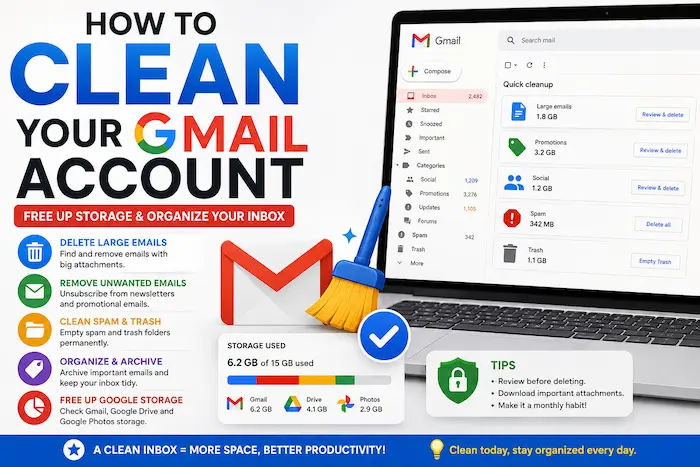

Is your Gmail account running out of storage space? Are you tired of thousands of unread emails, newsletters and old attachments filling your inbox?
You’re not alone.
A Gmail account can quickly become cluttered with promotional emails, large attachments, spam messages and years of conversations. Since Gmail storage is shared with other Google services such as Google Drive and Google Photos, unnecessary files and emails can eventually contribute to your Google storage limit.
The good news is that you don’t have to delete everything manually.
In this guide, we’ll show you how to clean your Gmail account, delete large emails, remove unwanted subscriptions, empty the Trash and free up Google storage.
Why should you clean your Gmail account?
A cluttered Gmail account can make it harder to find important messages and can eventually contribute to your Google storage becoming full.
Cleaning Gmail can help you:
- Free up storage space
- Find important emails faster
- Remove unwanted newsletters
- Delete old attachments
- Reduce spam
- Organize your inbox
- Improve productivity
- Keep your Google account easier to manage
If you regularly receive large files through email, cleaning your account can make a noticeable difference.
1. Check how much Google storage you’re using
Before deleting anything, check your current Google storage usage.
Your Google storage is shared across services including:
- Gmail
- Google Drive
- Google Photos
This means that deleting emails may not solve the problem if most of your storage is actually being used by photos or files in Google Drive.
Go to Google’s storage management page and check which service is using the most space.
If Gmail is responsible for most of the usage, you can begin cleaning your inbox.
2. Delete large emails in Gmail
One of the fastest ways to free up Gmail storage is to find emails containing large attachments.
In Gmail’s search box, you can search for large messages using a command such as:
larger:10M
This will show emails larger than 10MB.
You can increase or decrease the number depending on how aggressively you want to clean your account.
For example:
larger:20M
will search for emails larger than 20MB.
Review the results carefully and delete messages you no longer need.
Tip
Don’t automatically delete every large email.
Important documents, receipts, work files and personal records may be attached to some messages.
3. Search for old emails
If your Gmail account is several years old, you may have thousands of messages that you no longer need.
Gmail allows you to search for messages older than a specific period.
For example:
older_than:2y
This searches for emails older than two years.
You can also use:
older_than:1y
or:
older_than:6m
Review the results before deleting them.
Old newsletters, advertisements and automated notifications are usually good candidates for removal.
4. Delete promotional emails
Promotional emails can quickly fill your inbox.
Search Gmail for:
category:promotions
You’ll see promotional messages that Gmail has categorized automatically.
You can select unwanted messages and delete them in bulk.
However, check the sender and subject before deleting everything.
Some promotional emails may contain:
- Discount codes
- Receipts
- Order information
- Important account notices
- Subscription details
5. Clean your social emails
Another useful Gmail search is:
category:social
This can help you find notifications from social media platforms and other services.
If you don’t need years of old notifications, select them and delete them.
This can significantly reduce inbox clutter.
6. Delete emails with attachments
If you’re specifically looking for messages containing files, Gmail allows you to search for attachments.
Use:
has:attachment
You can combine this with other search operators.
For example:
has:attachment older_than:2y
This finds emails with attachments that are more than two years old.
You can then review and delete files you no longer need.
7. Clean your Spam folder
Gmail automatically filters suspicious messages into the Spam folder.
However, Spam can still accumulate.
Open:
Gmail → Spam
Review the messages briefly and make sure there is nothing important.
Then select Delete all spam messages now.
Spam messages are automatically removed eventually, but manually emptying the folder can help you clean your account immediately.
8. Empty your Gmail Trash
This is one of the most important steps.
When you delete an email, Gmail doesn’t necessarily remove it permanently immediately. Deleted messages remain in the Trash for a period before being automatically deleted.
To remove them immediately:
Gmail → Trash → Empty Trash now
Be careful.
Once you permanently delete messages from Trash, they generally cannot be recovered.
Only empty Trash after you’re certain you don’t need the deleted emails.
9. Unsubscribe from unwanted newsletters
Deleting old newsletters solves the immediate problem, but new messages will continue arriving if you’re still subscribed.
When you receive an unwanted newsletter, look for the Unsubscribe option, usually near the sender’s information at the top of the email.
Unsubscribe from:
- Shopping newsletters
- Promotional mailing lists
- Newsletters you never read
- Old services
- Marketing emails
- Websites you no longer use
This prevents your inbox from becoming cluttered again.
10. Search for newsletters in bulk
You can also search Gmail for common newsletter-related terms.
Try searching:
unsubscribe
This can reveal emails that contain unsubscribe links.
You can then review the results and delete messages you don’t need.
This is particularly useful if you’ve been using the same Gmail address for many years.
11. Delete old notifications
Many services automatically send notifications whenever something happens.
For example:
- Social media notifications
- Shopping alerts
- Login notifications
- App notifications
- Calendar notifications
- Website alerts
- Automated reports
Search for the name of the service and delete old notifications that no longer have any value.
Be careful with security-related emails.
Keep important messages concerning:
- Password changes
- Account recovery
- Financial transactions
- Security alerts
- Government services
- Work accounts
12. Use Gmail’s search operators
Gmail search operators make cleaning your account much faster.
Here are some useful examples:
| Search command | What it finds |
|---|---|
larger:10M | Emails larger than 10MB |
older_than:2y | Emails older than two years |
has:attachment | Emails containing attachments |
category:promotions | Promotional emails |
category:social | Social notifications |
is:unread | Unread emails |
from:example@gmail.com | Emails from a specific sender |
to:example@gmail.com | Emails sent to a specific address |
subject:invoice | Emails with “invoice” in the subject |
is:starred | Starred emails |
Combining search operators makes it possible to target exactly what you want to delete.
For example:
from:newsletter@example.com older_than:1y
can help you find old messages from a specific sender.
13. Delete unread emails you don’t need
If you have thousands of unread emails, your inbox can become difficult to manage.
Search for:
is:unread
You can then go through the results and delete messages that are no longer useful.
Don’t feel pressured to make your unread count reach zero.
The goal is to remove unnecessary messages and make important emails easier to find.
14. Organize important emails instead of deleting them
Not every old email should be deleted.
If you want to keep a message but don’t want it cluttering your inbox, use Archive.
Archived emails remain in your Gmail account and can still be found through search.
You can also use labels to organize important messages.
For example, create labels such as:
- Work
- Finance
- Receipts
- Travel
- Personal
- Documents
- Important
This is often better than keeping thousands of messages in your primary inbox.
15. Don’t forget Google Drive and Google Photos
If your Google account says storage is full, Gmail may not be the main problem.
Google storage is shared across Gmail, Google Drive and Google Photos.
For example, you might have:
- 5GB of Gmail data
- 10GB of Google Drive files
- 15GB of Google Photos
In this situation, deleting a few emails won’t solve the problem.
Check your Google storage dashboard to determine which service is consuming the most space.
Google Drive
Look for:
- Large videos
- Old ZIP files
- Duplicate documents
- Old backups
- Unused presentations
- Large downloads
Google Photos
Look for:
- Duplicate photos
- Blurry images
- Unwanted videos
- Screenshots
- Old recordings
16. Empty Google Drive and Photos Trash
Just like Gmail, Google Drive and Google Photos have Trash folders.
Deleting a file doesn’t necessarily remove it permanently immediately.
If you’re trying to free up storage quickly, check:
Google Drive → Trash
and
Google Photos → Trash
Permanently delete items you no longer need.
Again, make sure you’re comfortable permanently deleting them before emptying these folders.
17. Be careful when deleting emails
Cleaning Gmail is useful, but don’t delete important records simply to reduce your storage usage.
Before deleting emails, check whether they contain:
- Bank statements
- M-Pesa records
- KRA documents
- NHIF/SHIF-related correspondence
- Business documents
- Receipts
- Invoices
- Travel information
- Employment documents
- Password recovery information
- Legal documents
For Kenyan users, emails containing important financial or government records may be worth keeping.
Instead of deleting them, consider downloading important documents and storing them securely.
18. Download important attachments before deleting emails
If an email contains an important PDF, invoice or document, download the attachment before deleting the message.
You can store important files securely on:
- Your computer
- An external drive
- Google Drive
- Another trusted cloud-storage service
This allows you to reduce Gmail clutter without losing important information.
19. Create a monthly Gmail cleaning routine
You don’t need to wait until Gmail is completely full.
Spend a few minutes every month cleaning your inbox.
A simple routine could be:
Every week
Delete obvious spam and promotional emails.
Every month
Review newsletters and large attachments.
Every three months
Search for old emails and remove unnecessary messages.
Every six months
Review Google Drive and Google Photos storage.
This prevents your account from becoming heavily cluttered.
How to clean Gmail quickly
If you don’t have much time, use this five-step method:
Step 1: Search larger:10M
Delete unnecessary large emails.
Step 2: Search older_than:2y
Remove old messages you don’t need.
Step 3: Search category:promotions
Delete unwanted promotional emails.
Step 4: Open Spam
Delete unnecessary spam.
Step 5: Empty Trash
Permanently remove deleted messages.
This can give you a much cleaner Gmail account in a short period.
What happens if your Google storage is full?
When your Google storage reaches its limit, you may experience problems across Google’s services.
Depending on your account and circumstances, this can affect your ability to:
- Send or receive Gmail messages
- Upload files to Google Drive
- Back up photos and videos
- Use other Google storage-dependent services
That’s why it’s better to manage your storage before reaching the limit.
Should you delete emails or buy more Google storage?
If your account is filled with unnecessary emails and files, cleaning it first is the better option.
You may discover that you can recover a significant amount of space without paying for additional storage.
However, if your account contains files and photos you genuinely need, purchasing additional Google storage may be more practical than repeatedly deleting important data.
The right choice depends on how you use your Google account.
Final thoughts
A cluttered Gmail account doesn’t have to stay that way.
By deleting large attachments, removing old emails, unsubscribing from unwanted newsletters, cleaning Spam and emptying Trash, you can make your Gmail account easier to manage and potentially recover valuable storage space.
Remember that Gmail is only one part of your Google storage.
If you’re still running out of space after cleaning your inbox, check Google Drive and Google Photos as well.
Most importantly, don’t delete important records just to reduce your storage usage.
A clean Gmail account is useful, but protecting important information should always come first.
Frequently Asked Questions
How do I free up space in Gmail quickly?
Search for large emails using larger:10M, delete unnecessary messages, empty Spam and permanently clear your Trash.
How do I delete thousands of Gmail emails at once?
Use Gmail search operators to filter the messages you don’t need. You can then select the matching messages and delete them in bulk.
How do I find the biggest emails in Gmail?
Use the Gmail search command larger:10M. You can change the number to find emails above a different size.
Does deleting Gmail emails free Google storage?
Yes, permanently deleting emails and emptying Trash can free storage used by Gmail. Remember that Google storage is shared with Google Drive and Google Photos.
How do I delete old emails in Gmail?
Search using older_than:2y, for example, to find emails older than two years. Review them before deleting.
Is it safe to delete old Gmail emails?
Only delete emails you’re sure you no longer need. Keep important financial, work, government, security and personal records.
