
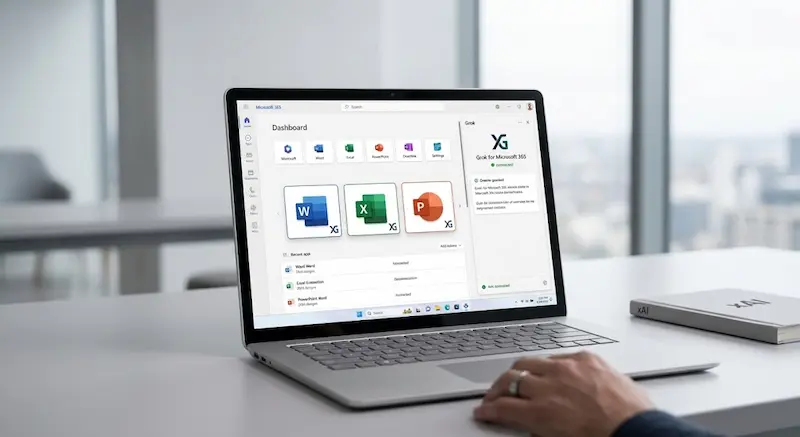

Microsoft 365 users now have another artificial intelligence option inside some of the world’s most widely used productivity applications.
xAI has brought Grok to Microsoft Word, Excel and PowerPoint through Microsoft 365 add-ins, allowing users to interact with the AI assistant without leaving their documents, spreadsheets or presentations.
The move puts Grok directly inside Microsoft’s productivity ecosystem and gives users another AI option alongside Microsoft’s own Copilot.
However, the distinction is important: Grok is not replacing Microsoft Copilot or becoming a native Copilot model. Instead, xAI has made Grok available through Microsoft 365 add-ins that can operate within Word, Excel and PowerPoint.
The development is another sign that the competition in AI is moving beyond standalone chatbots and into the software people already use for work.
What is Grok doing inside Microsoft 365?
The Grok Microsoft 365 add-in provides an AI assistant through a side panel within supported Office applications.
According to xAI, users can give Grok instructions using natural language and ask it to work with documents, spreadsheets and presentations.
The company has released dedicated experiences for Word, Excel and PowerPoint.
This means users do not necessarily have to copy information from an Office document into a separate AI chatbot and then paste the answer back.
Instead, Grok can work from within the application where the task is taking place.
That could be particularly useful for people who spend much of their working day writing documents, analysing spreadsheets or preparing presentations.
Grok in Microsoft Word
The Grok add-in for Word is designed to help users create and improve documents.
Users can provide rough notes and ask Grok to turn them into structured content. It can also help rewrite existing text, improve clarity and adjust wording.
xAI says Grok for Word can also use web research and information from X when helping users with their documents.
For example, a user could start with a collection of rough notes and ask Grok to turn them into a structured report.
It can also be used for tasks such as:
- Drafting documents from notes
- Rewriting paragraphs
- Improving grammar
- Making writing more concise
- Structuring long documents
- Researching information for a document
- Creating diagrams
- Refining existing content
For journalists, students, researchers and business professionals, the ability to work directly inside Word could reduce the amount of copying and pasting required between different applications.
Grok in Microsoft Excel
The Excel integration takes a different approach because spreadsheets require data analysis rather than just writing.
Grok for Excel allows users to ask questions about selected spreadsheet data using natural language.
For example, instead of manually writing a complex formula, a user can describe the result they want and ask Grok to help create the appropriate formula.
xAI says Grok can analyse selected data, identify trends, answer questions about the information and create charts.
It can also help users run scenarios and modify spreadsheet content.
Potential uses include:
- Explaining spreadsheet data
- Creating formulas
- Identifying trends
- Generating charts
- Running what-if scenarios
- Working with tables
- Helping with financial models
- Analysing selected ranges
This could make AI particularly useful for small businesses that rely heavily on Excel but may not have dedicated data analysts.
However, users should still verify formulas, calculations and financial conclusions before relying on them.
AI-generated spreadsheet results can contain mistakes, and an apparently convincing answer is not a substitute for checking the underlying data.
Grok in Microsoft PowerPoint
Grok can also work inside PowerPoint.
The PowerPoint add-in is designed to help users turn outlines and ideas into editable presentations.
According to xAI, users can ask Grok to create slides from an outline, add slides to an existing presentation, restructure sections and refine the narrative.
This could be useful when creating:
- Business presentations
- Sales decks
- Research presentations
- Training materials
- Project updates
- Pitch decks
- Educational presentations
Rather than starting with a blank PowerPoint presentation, a user can provide the subject and structure and use Grok to generate an initial deck that can then be edited.
The important point is that the resulting slides remain editable within PowerPoint.
Is Grok replacing Microsoft Copilot?
No.
This is one of the most important distinctions surrounding the announcement.
Grok is entering Microsoft 365 through an add-in, while Copilot is Microsoft’s own AI assistant integrated into its applications.
Microsoft has also been moving toward a multi-model AI strategy.
The company says Copilot can work with models from different AI providers, including Anthropic, while OpenAI models continue to power major Copilot experiences.
Microsoft’s own Copilot has also become more capable of taking actions directly inside Word, Excel and PowerPoint.
Microsoft says its agentic Copilot capabilities can perform multi-step actions inside documents, spreadsheets and presentations rather than simply responding to questions.
That creates an interesting situation.
Users can now have Microsoft’s own Copilot available within Office while also being able to install competing AI assistants such as Grok.
Grok vs Microsoft Copilot
The two tools overlap in several areas, but their approaches are different.
| Feature | Grok | Microsoft Copilot |
|---|---|---|
| Word | Yes | Yes |
| Excel | Yes | Yes |
| PowerPoint | Yes | Yes |
| Works through Microsoft 365 | Yes, through add-ins | Yes, natively integrated |
| Natural-language assistance | Yes | Yes |
| Document drafting | Yes | Yes |
| Spreadsheet analysis | Yes | Yes |
| Presentation creation | Yes | Yes |
| Microsoft 365 work context | Through supported integrations | Deep Microsoft 365 integration |
| Multi-step actions | Depends on the add-in/task | Increasingly supported |
| Microsoft ecosystem integration | Add-in based | Native |
The biggest difference is therefore integration.
Microsoft controls the underlying Microsoft 365 environment and has built Copilot into its broader productivity ecosystem.
Grok, meanwhile, is entering the same environment as a third-party AI assistant.
Why this matters for Microsoft 365 users
The arrival of Grok inside Office is significant because it changes the competitive landscape.
For years, the main question for many users was whether to use Microsoft Copilot, ChatGPT, Gemini or another standalone AI assistant.
Now, competing AI systems are increasingly moving directly into the applications where people work.
That means the AI competition is becoming less about opening a chatbot and more about which AI assistant can actually help complete the task inside the software being used.
Microsoft itself has recognised this shift.
Its latest Copilot experiences are designed to take actions directly within Word, Excel and PowerPoint, including editing documents, transforming data and improving presentations.
Grok’s arrival adds another competitor to that environment.
What does this mean for businesses?
For businesses, the development could provide more choice.
A company that already relies heavily on Microsoft 365 can potentially evaluate multiple AI tools without forcing employees to constantly switch between separate applications.
However, businesses also need to consider security, privacy, licensing and data governance.
The Microsoft Marketplace listing for Grok states that the add-in can read and make changes to documents and can send data over the internet.
That makes it important for organisations to understand what information an AI add-in can access before using it with confidential business documents.
Companies should establish clear rules around sensitive information, customer records, financial information, intellectual property and internal documents.
AI productivity gains should not come at the expense of data security.
What does this mean for Kenyan users?
The development could be particularly relevant to Kenyan businesses, startups, students and professionals that already depend on Microsoft Office.
Microsoft Word, Excel and PowerPoint remain common tools for preparing reports, analysing business information, creating proposals and developing presentations.
For a small Kenyan business, AI tools could potentially reduce the time spent on routine tasks.
For example, a business owner could use AI to help structure a business proposal in Word, analyse sales figures in Excel or prepare an investor presentation in PowerPoint.
A student or researcher could also use AI to organise notes, analyse data and prepare presentations.
However, the technology should be treated as an assistant rather than an automatic authority.
Users should verify important information, calculations, sources and claims before submitting or publishing AI-assisted work.
This is especially important for financial reports, academic work, business proposals and professional documents.
The bigger AI trend
Grok’s arrival in Word, Excel and PowerPoint highlights a broader change happening across the technology industry.
AI companies are increasingly trying to put their models where users already work.
Instead of asking users to leave their existing applications and visit a separate chatbot, AI companies want their assistants to become part of the workflow.
Microsoft is pursuing this through Copilot and its agentic capabilities.
Google has integrated Gemini into its productivity ecosystem.
Anthropic models are also becoming available in selected Microsoft Copilot experiences.
And xAI is now bringing Grok directly into Microsoft’s productivity applications.
The result could be a future where users choose AI models based less on the chatbot’s interface and more on how well the model performs a specific job inside the software they already use.
Should you use Grok or Copilot?
There is no single answer for everyone.
Grok may appeal to users who want another AI option inside Microsoft Office, particularly those interested in its web and X-connected research capabilities.
Copilot may make more sense for organisations heavily invested in Microsoft 365, especially where native integration, administration, permissions and Microsoft ecosystem features are important.
The best choice will depend on the user’s workflow, subscription, privacy requirements and the type of work being performed.
For important business tasks, users should also compare the quality of the results rather than choosing an AI tool simply because it is newer.
What users should check before using an AI add-in
Before giving any AI assistant access to work documents, users should consider:
- What information can the tool access?
- Where is that information processed?
- Can the tool modify the original document?
- What subscription is required?
- What usage limits apply?
- Does the organisation allow third-party AI tools?
- Are sensitive files protected by company policies?
- Can AI-generated information be independently verified?
These questions matter more for businesses than simply asking which AI model produces the most impressive response.
The bottom line
Grok’s arrival in Microsoft Word, Excel and PowerPoint is another indication that the AI competition is moving deeper into everyday productivity software.
But it is important to describe the development accurately: xAI has introduced Grok through Microsoft 365 add-ins; Microsoft has not simply replaced Copilot with Grok.
For users, the immediate benefit is more choice.
For Microsoft, it means competing AI assistants are increasingly appearing on the same software platform where Microsoft sells Copilot.
And for the wider AI industry, the message is clear: the next phase of the AI race may not be about which chatbot gets the most attention.
It may be about which AI assistant can help users finish real work with the least friction.
Frequently Asked Questions
Is Grok available in Microsoft Word?
Yes. xAI has released a Grok add-in for Microsoft Word that can help users draft, restructure, rewrite and research content from within Word.
Is Grok available in Microsoft Excel?
Yes. Grok for Excel can analyse selected spreadsheet data, help create formulas, answer questions and generate charts.
Can Grok create PowerPoint presentations?
Yes. Grok for PowerPoint can turn outlines into presentations, add slides and help restructure and refine existing decks.
Is Grok replacing Microsoft Copilot?
No. Grok is available through Microsoft 365 add-ins, while Microsoft Copilot remains Microsoft’s own AI assistant and is integrated directly into Microsoft 365.
Is Grok free in Microsoft Office?
The add-in itself is available through Microsoft Marketplace, but access and usage can depend on the user’s Grok subscription. Microsoft’s Marketplace listing currently states that the Microsoft 365 add-in is available to X and SuperGrok paid users, with usage limits applying.
Can businesses use Grok with confidential documents?
Businesses should check the add-in’s data access, security and organisational policies before using it with confidential information. The Microsoft Marketplace listing states that the application can read and make changes to documents and can send data over the internet.
Conclusion
Grok’s integration with Word, Excel and PowerPoint gives Microsoft 365 users another way to use AI without constantly switching between applications.
The bigger story, however, is the growing competition to control the AI layer inside everyday productivity software.
Microsoft has Copilot. Google has Gemini. Anthropic models are appearing in more workplace AI experiences. Now xAI’s Grok is also moving into Microsoft Office.
For users in Kenya and elsewhere, that competition could ultimately be good news if it produces better tools, more choice and lower barriers to accessing useful AI.
The real test will be simple: which AI assistant can save users the most time while producing work they can actually trust?
