

Close Menu

    Subscribe to Updates

    Get the latest creative news from FooBar about art, design and business.

    What's Hot

    Telenor Builds Sovereign AI Factory on Red Hat

    March 3, 2026

    Central Bank of Kenya approved hiding phone numbers

    March 3, 2026

    Israel’s economy growth despite regional conflict

    March 3, 2026
    Facebook X (Twitter) Instagram
    Facebook X (Twitter) Instagram
    Tech DriversTech Drivers
    Subscribe
    • Home
    • Cars

      Car Soko: Kenya’s Premier Car Mart

      February 8, 2026

      Why People Love Prado 150

      January 31, 2026

      3 Types of engine oil

      January 21, 2026

      How to check oil in your car

      January 21, 2026

      What causes vibrations in the car

      January 21, 2026
    • Tech
    • Mobiles
      • Gaming
    • Insights
      • How to
      • Insights
    Tech DriversTech Drivers
    Home » How to Restore WhatsApp Chats on Android and iPhone
    How to

    How to Restore WhatsApp Chats on Android and iPhone

    AmosBy AmosFebruary 17, 2026No Comments2 Mins Read
    Facebook Twitter Pinterest LinkedIn Tumblr Email
    Tech Drivers
    Share
    Facebook Twitter LinkedIn Pinterest Email

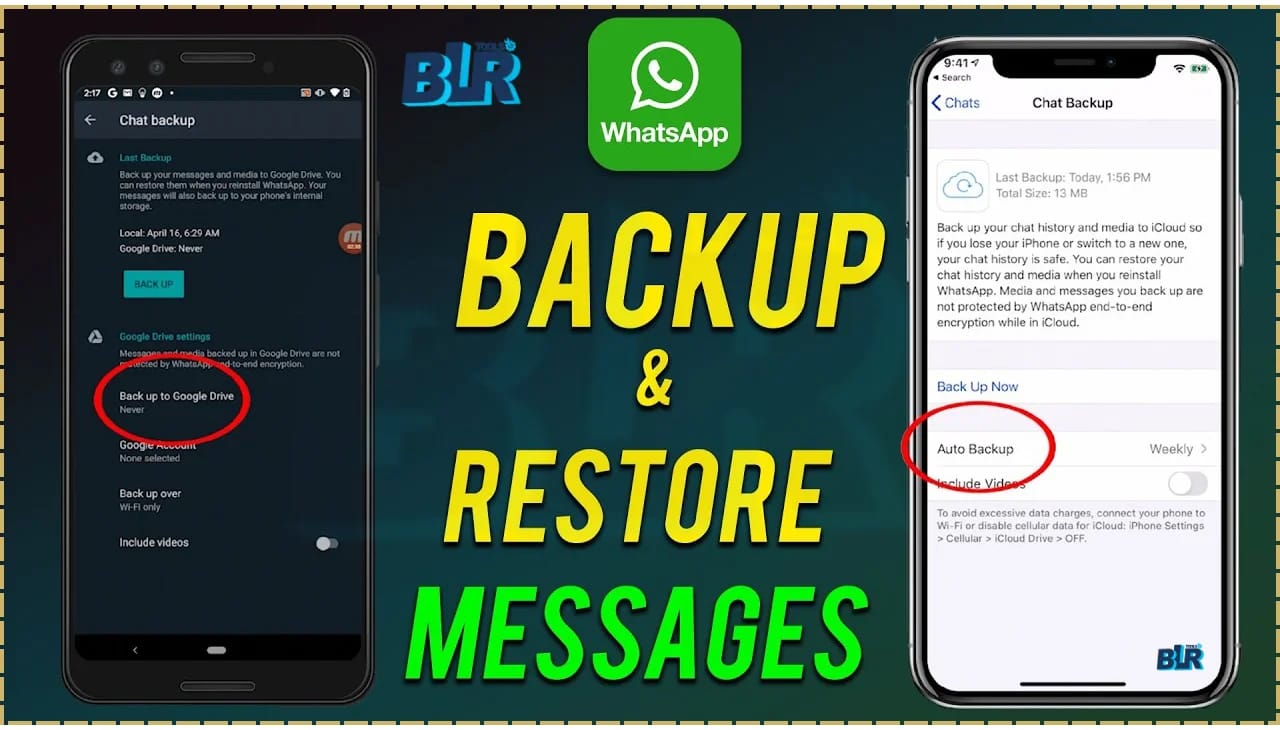
    Have you ever lost your phone or switched to a new smartphone and realized your old WhatsApp chats were gone? It can be difficult, but you can get them back. WhatsApp allows both Android and iPhone users to back up their chats and media to Google Drive or iCloud. This facility lets users have a copy of their conversations that they can easily restore later. The steps to back up and restore chats are simple, and here we will guide you through them.

    Android smartphone users can back up their WhatsApp chat history to their Google Account, while iCloud is used when backing up and restoring chats on an iPhone. As you might expect, backing up chats takes up additional Google Drive or iCloud storage, which means you might need to opt for a paid tier if your backup is too large.

    Before trying out the steps, keep in mind that users cannot back up or restore chats from linked devices like WhatsApp Web, WhatsApp on Mac, or WhatsApp on Windows. The primary phone, where you first registered WhatsApp, before linking additional devices, is required for this process.

    You must also make sure that you have an active Google Account on your phone, which requires Google Play services. Also, you need to have enough free space on both your phone and your Google Account.

    How to Restore a WhatsApp Chats on Android

    1. Open WhatsApp on your Android phone
    2. Tap the three-dot menu
    3. Open Settings
    4. Tap Chats and select Chat backup
    5. Tap Back up

    How to Restore WhatsApp Chats on iOS

    1. Open WhatsApp.
    2. Tap your profile picture.
    3. Tap Chats.
    4. Select Chat backup and tap Back up now.

    How to Set Up Automatic Backups on Android

    1. Open WhatsApp on your Android phone.
    2. Settings > Chats > Chat backup > Back up to your Google Account.
    3. Select a backup schedule other than Never or Only when I tap Back up.
    4. Select the Google Account where you want to save your chats.
    5. If you don’t have a Google Account connected, tap Add account when prompted and enter your login information.
    6. Select Back up using cellular if you want to use your mobile network data to back up your chats.

    How to Set Up Automatic Backups on iOS

    • Open WhatsApp and tap Settings.
    • Tap Chats > Chat backup.
    • Tap Auto backup and choose your backup frequency.
    • You can also choose whether to include or exclude videos in the backup.

    Share this:

    • Share on Facebook (Opens in new window) Facebook
    • Share on X (Opens in new window) X
    Share. Facebook Twitter Pinterest LinkedIn Tumblr Email
    Amos

    Related Posts

    How to Identify Genuine Tecno Phone Parts

    March 2, 2026

    How to Fix a Water Damaged Phone

    March 2, 2026

    How to Create Rules in Gmail

    March 2, 2026
    Add A Comment
    Leave A Reply Cancel Reply

    Editors Picks
    8.5

    Apple Planning Big Mac Redesign and Half-Sized Old Mac

    January 5, 2021

    Autonomous Driving Startup Attracts Chinese Investor

    January 5, 2021

    Onboard Cameras Allow Disabled Quadcopters to Fly

    January 5, 2021
    Top Reviews
    9.1

    Review: T-Mobile Winning 5G Race Around the World

    By Amos
    8.9

    Samsung Galaxy S21 Ultra Review: the New King of Android Phones

    By Amos
    8.9

    Xiaomi Mi 10: New Variant with Snapdragon 870 Review

    By Amos
    Advertisement
    Demo
    Facebook X (Twitter) Instagram
    • Home
    • Tech
    • Mobiles
    • How to
    © 2026 Techdirvers Designed by Codelabpros.

    Type above and press Enter to search. Press Esc to cancel.

    Powered by
    ►
    Necessary cookies enable essential site features like secure log-ins and consent preference adjustments. They do not store personal data.
    None
    ►
    Functional cookies support features like content sharing on social media, collecting feedback, and enabling third-party tools.
    None
    ►
    Analytical cookies track visitor interactions, providing insights on metrics like visitor count, bounce rate, and traffic sources.
    None
    ►
    Advertisement cookies deliver personalized ads based on your previous visits and analyze the effectiveness of ad campaigns.
    None
    ►
    Unclassified cookies are cookies that we are in the process of classifying, together with the providers of individual cookies.
    None
    Powered by